Mastering Basic Linux Commands

Starting to learn, understand and to practice hands-on on the basic commands of Linux is essential for DevOps. Hands-on on this commands will help you to excel well with the Advance commands and to troubleshoot any issues.
Linux is a case- sensitive Language.
If you login into CLI, then the interface looks like
[ user1@localhost ~ ] $
Here User 1 is the username
Localhost is the Machine/pc name
~ is the Present working directory.
($)- Non-privileged user - who does not have authority to access.
(#) - privileged user - who gives full authority root user
Windows vs Linux
Folder → Directory
Administrator → root user
File → file
Software → Package
COMMANDS:
Everything in Linux is files and directory.
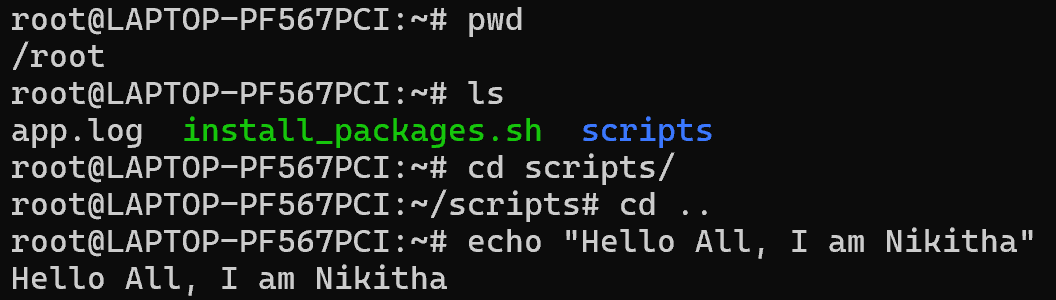
pwd → Present working directory
cd → change the directory (can be used to go to home directory)
cd .. → go to back to previous directory
echo → prints the string passed
ls → Listing all files and directories
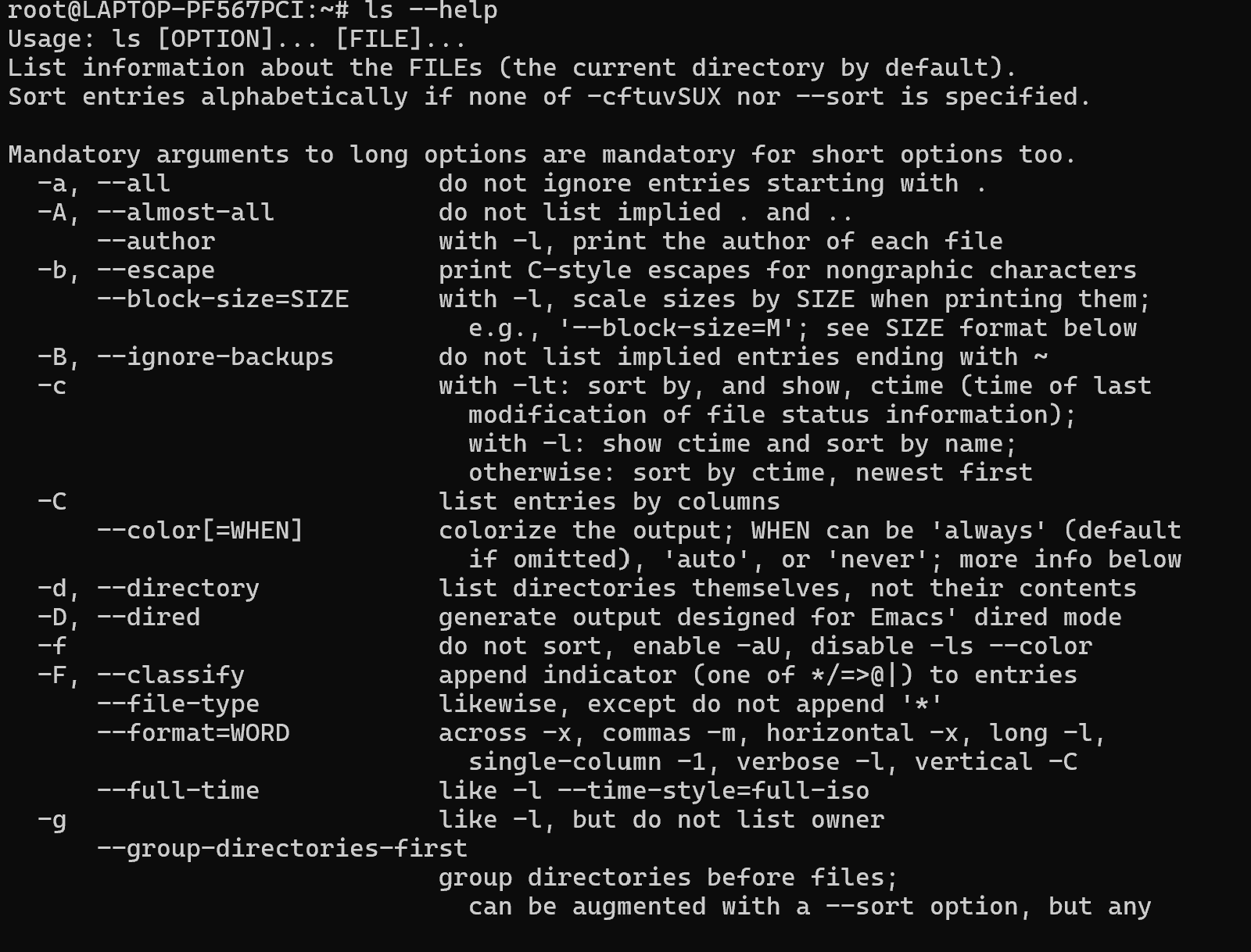
ls --help → for help
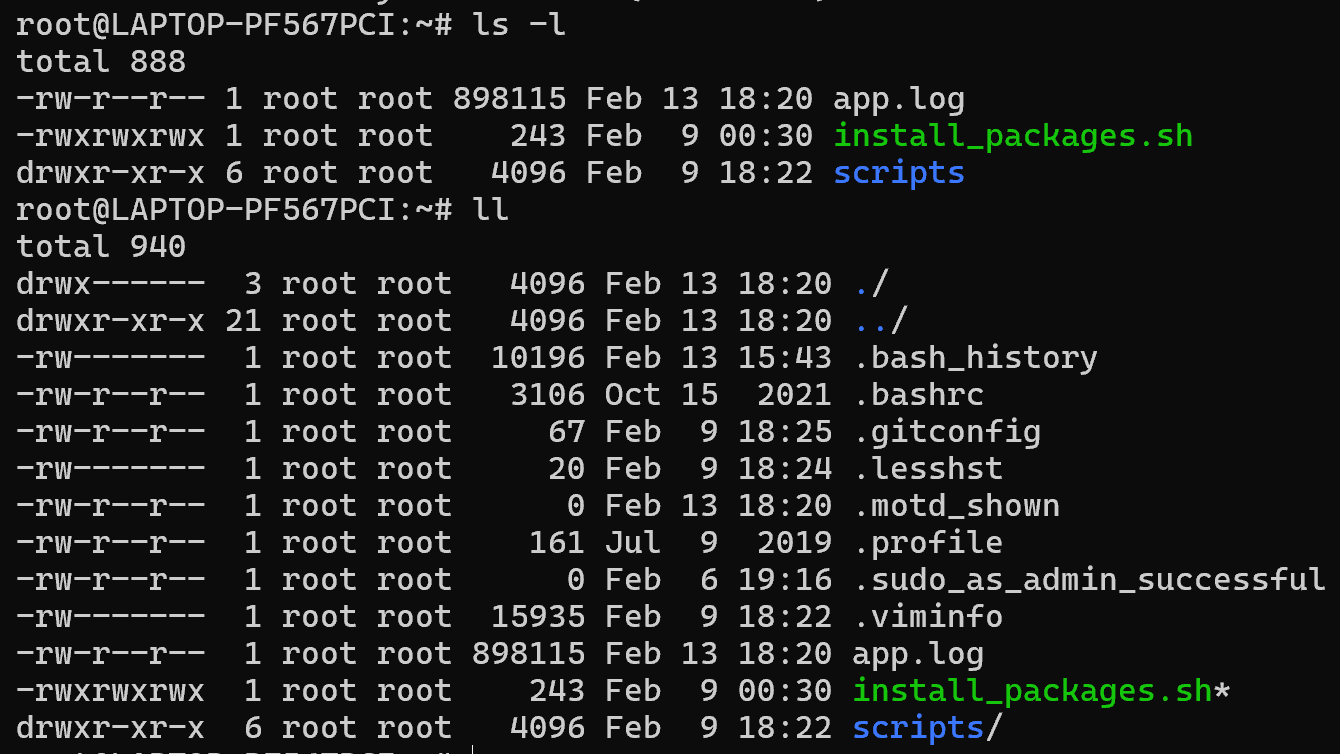
ls -l (long listing) and ll (long listing with hidden files)
man → manual page for all the commands
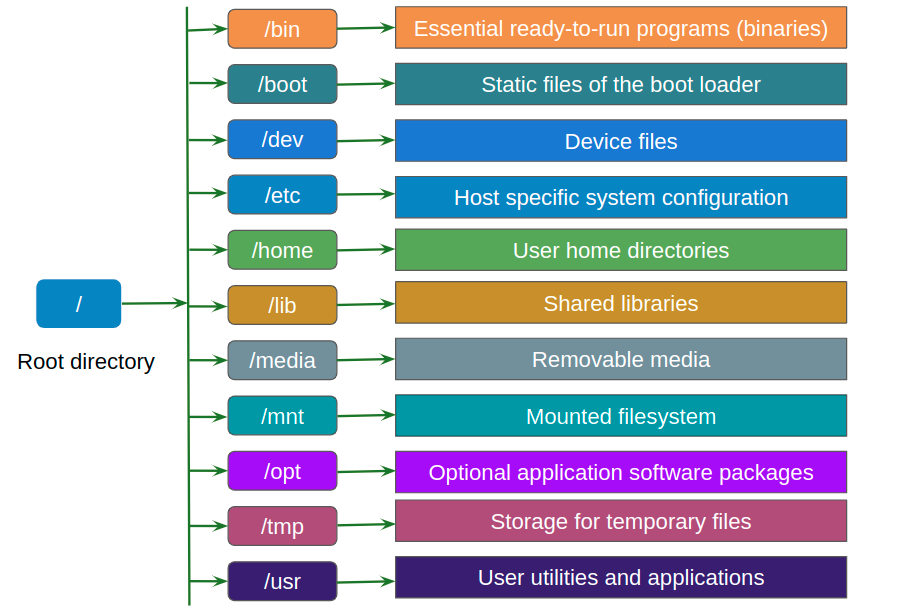
File system Hierarchy:
Directory creation & deletion:
To create a directory → mkdir
To remove/delete a directory:
rmdir→ used to remove the specified directory (empty)rmdir -p→ Remove both child and parent directoryrmdir -pv→ Removes all parent & subdirectories (not empty)rm -rf→ Removes even non-empty file and directoryrm -rp→ removes non-empty directories including parent & directoryrm -r→ removes empty directory
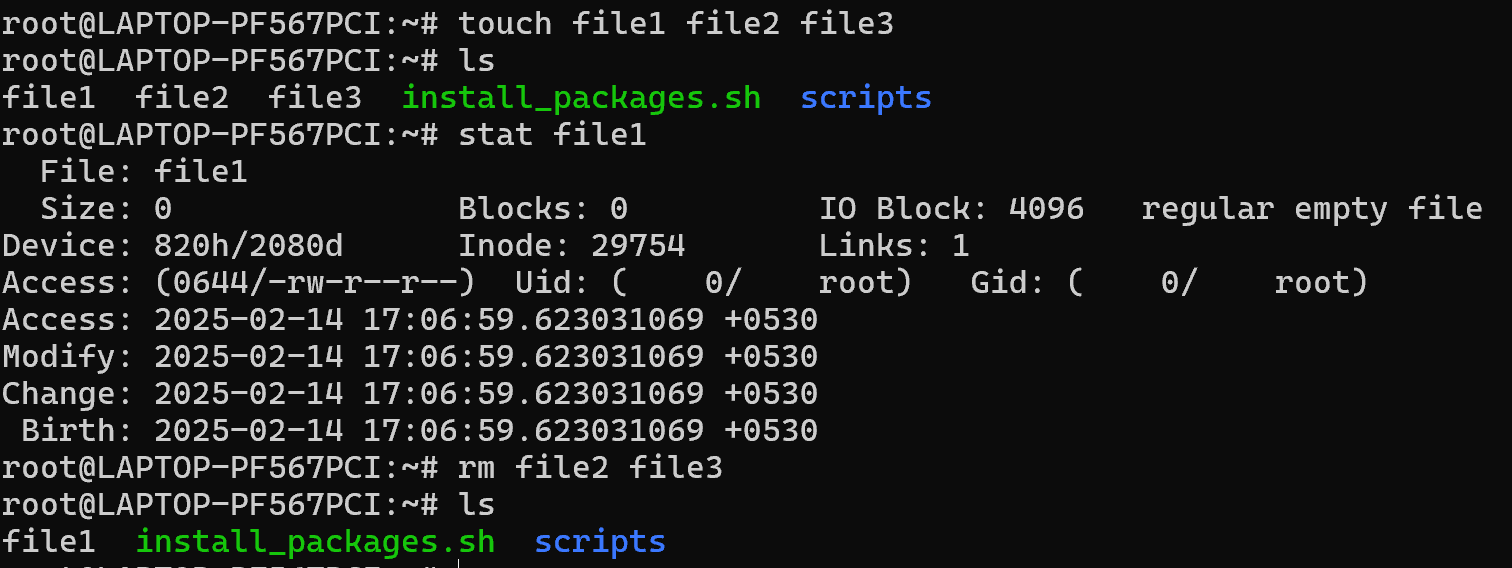
Ways to create a file:
Touch command:
to create a empty file.
create multiple empty files.
Change all timestamp of a file (
statcommand is used to check the timestamp)Update only access time of the modify time of file.
Cat command:
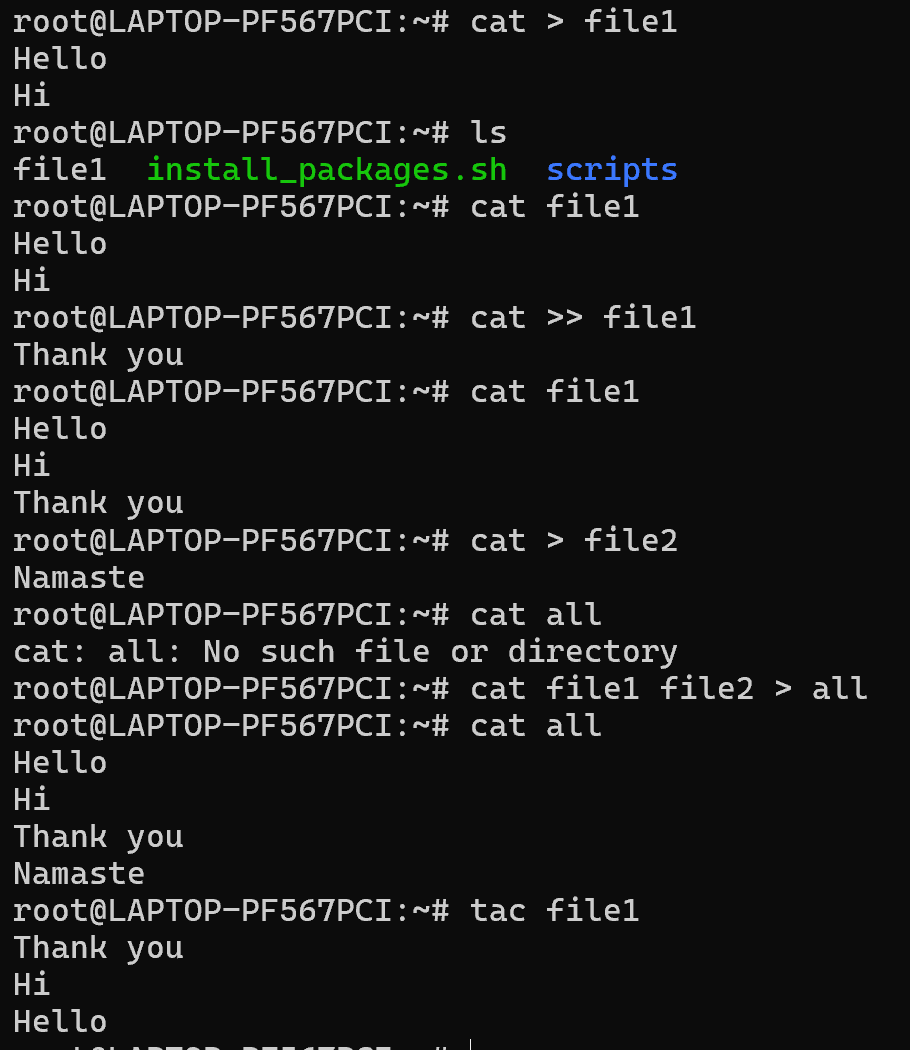
Create file → create a single file
Concatenate file → To add more than one file into single file
Copy file → To copy content of x into y
tac → To see the content in bottom to top
Vim editor:
A programmer text editor.
It can be used to edit all kinds of plain text. It is specially useful for editing programs mainly used for UNIX programs.
Vim is a standard whereas “nano” has to be available depending on the Linux you use.
Note: :w → to save, :q → quit, :q! → force quit, no save
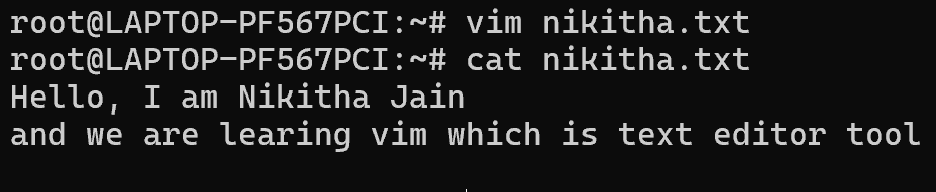
Let’s create a file - vim nikitha.txt

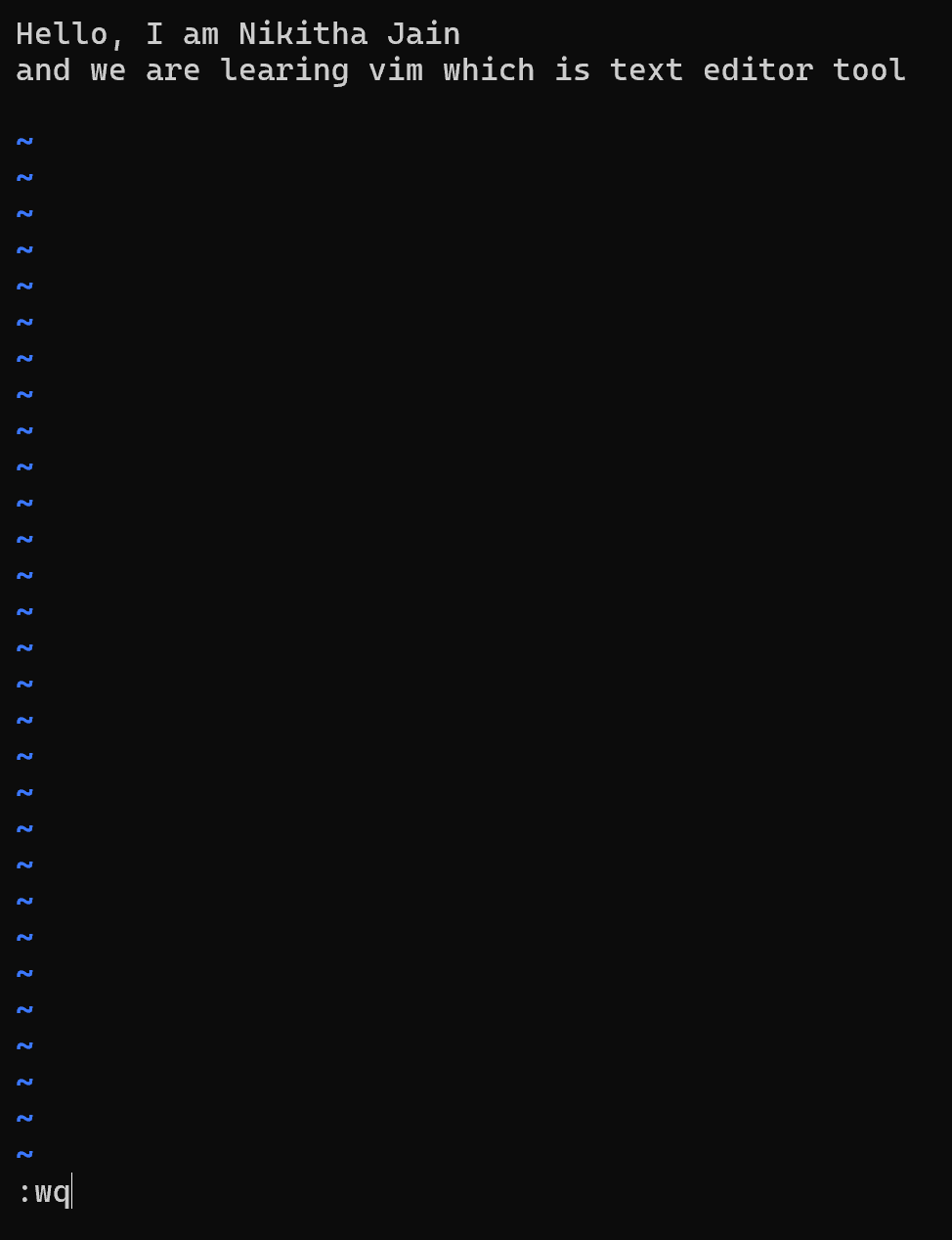
Here once the vim opens click on “i” for insert mode then enter the text and esc
then :wq to save and quit
Nano command:
similar to vim.
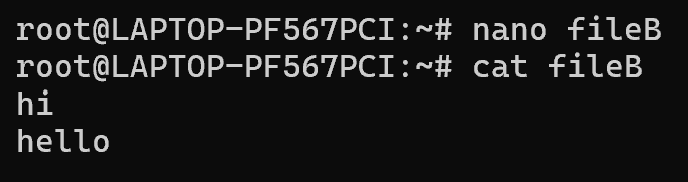
Here nano fileB will create fileB then enter the text and click “ctrl+x” → Y
To overwrite the data in the file, ctrl+o → ctrl+X
- Copy a file → cp <source file> <destination file>
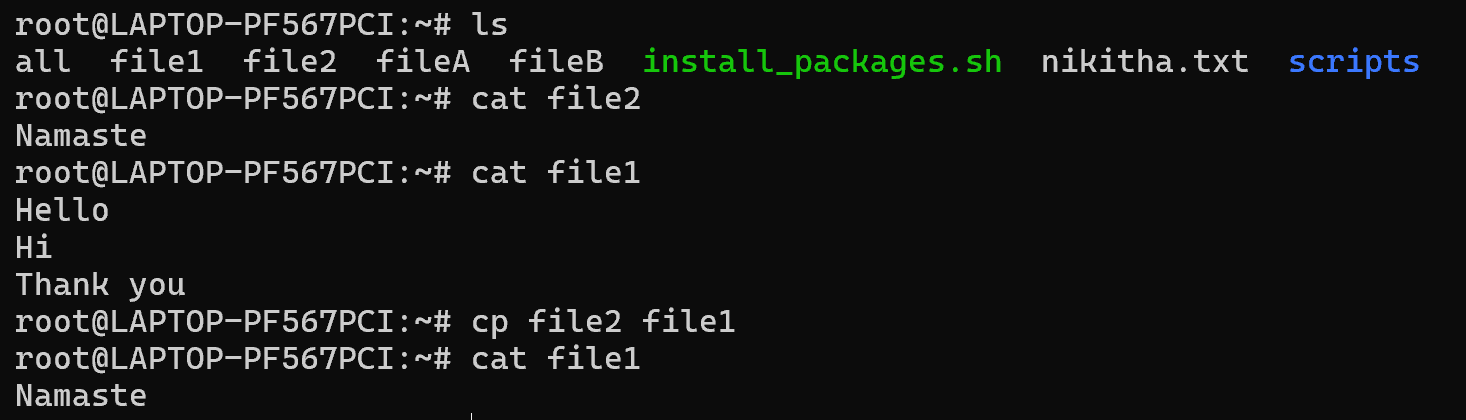
- Move/ cut and paste → mv <cut> <paste>
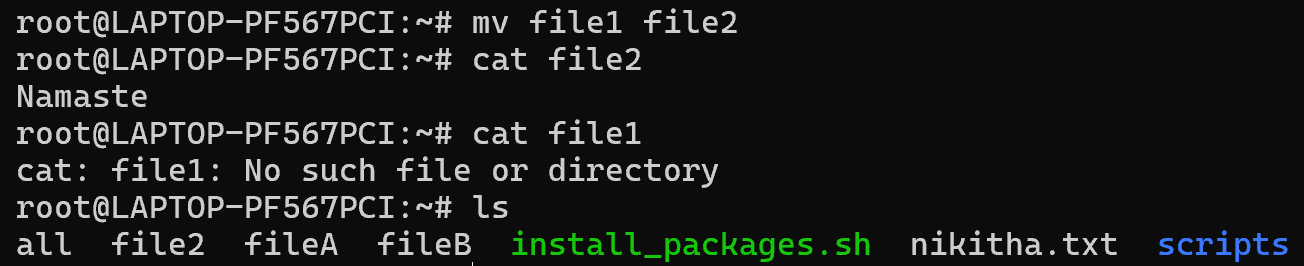
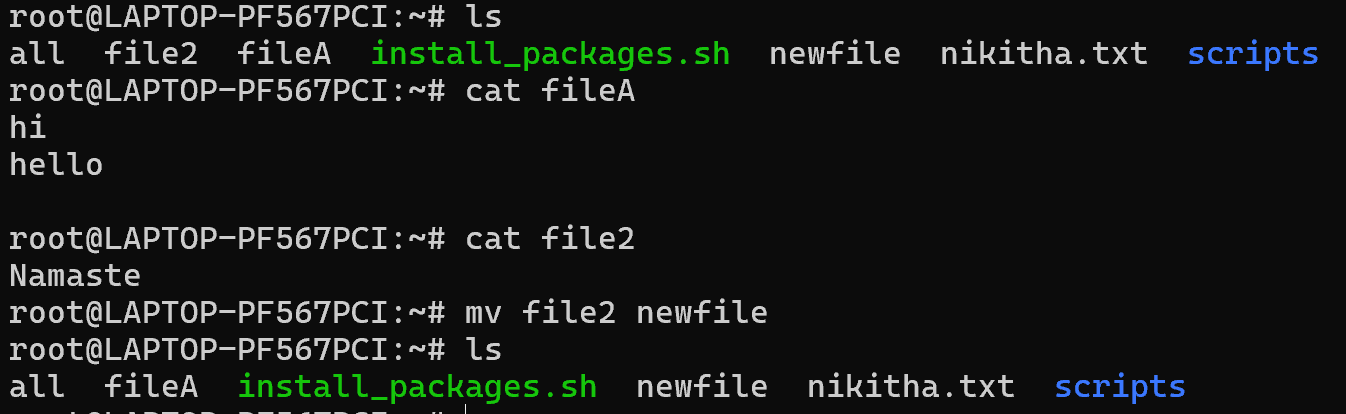
- Rename file or directory → mv <old file> <new filename>
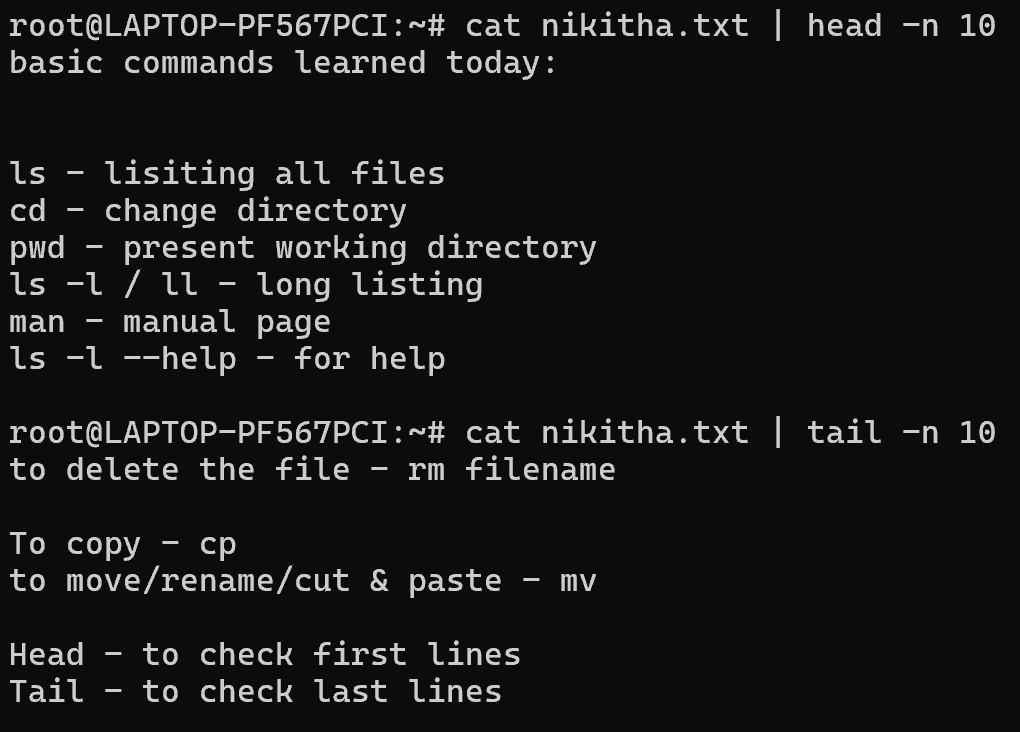
Head → Shows the first lines
Tail → Shows the last lines
Conclusion:
Mastering basic Linux commands is crucial for efficiently navigating and managing Linux systems, enabling users to perform tasks with ease and paving the way for learning advanced commands and scripting.
Happy Learning!


